Inline Player Setup
Embed the player
1. Set up your show
Log in to the workspace
Use your credentials to log in to the Bambuser workspace.
If your account is within EU servers, log in through Bambuser EU workspace.
Create a show / Open an existing show
To create a new show, click the "Create test show" or "Create show" button on the top right corner.
Add products (optional)
To add products to your show, navigate to your show on the Live Shopping workspace. On the right side, you can see the show's product section. Add your products by entering the URL(s) to your PDP (Product Display Page). You can add multiple products by entering space-separated or comma-separated URLs.
When you add a product to a show in the Bambuser Workspace, some basic product details are loaded from the given product's PDP. These can only be populated correctly when your PDP structured data is in the format our scraper expects.
- A thumbnail image URL
- A product name or title
- A brand name
- A reference value (often the SKU, or if it does not exist, the product URL)
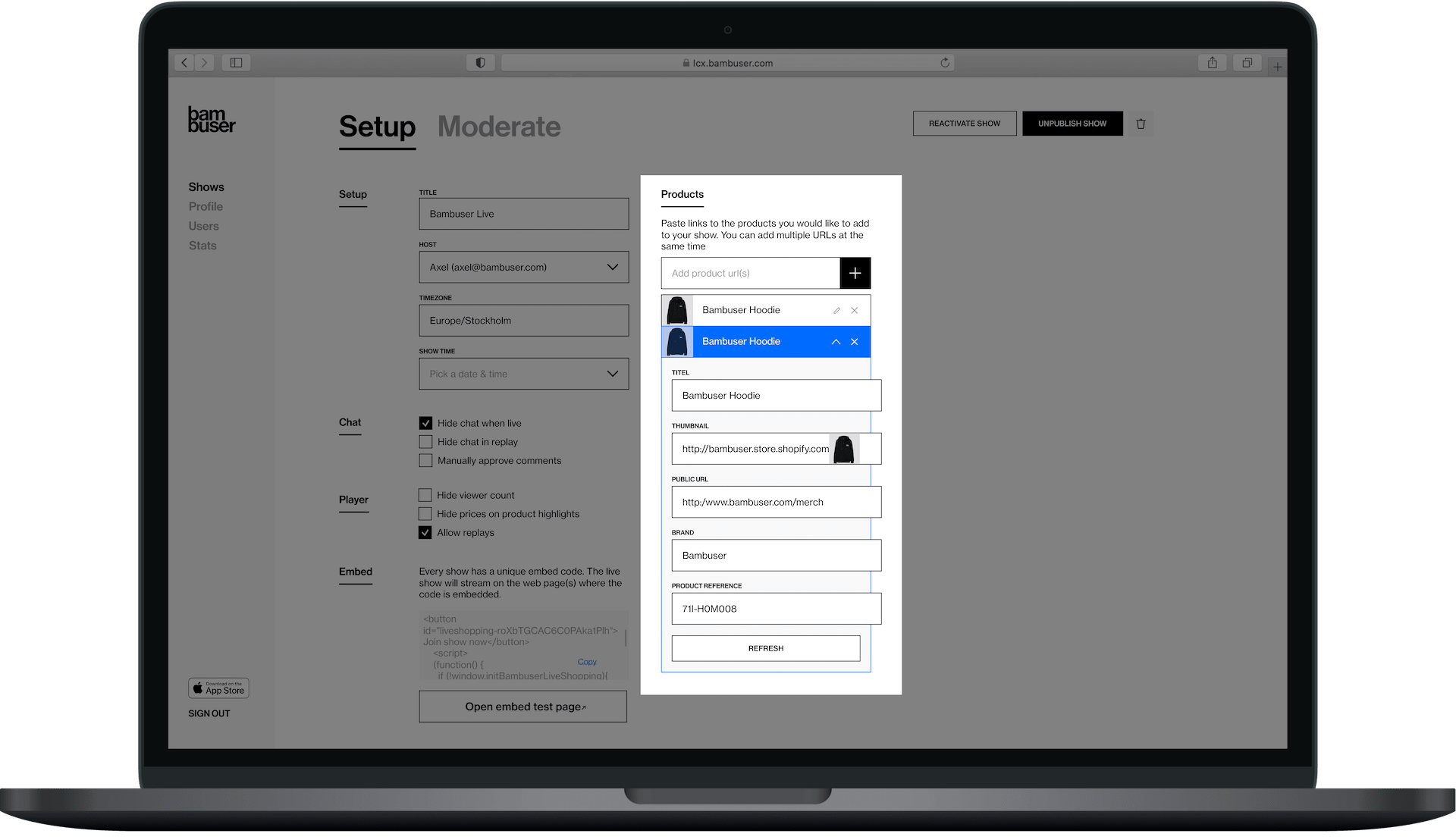
Product data is collected using the following standards:
- Schema.org/Product
- og: meta tags
If none of the above is present on your product pages, you may can still manually update product info.
Learn more about scraping here: Bambuser Live Shopping Product Data Scraping
2. Embed the code snippet
Copy the embed code snippet
On your show page, press the Copy button in the Embed part of the show's Setup page. This copies the embed code, which can then be inserted on any page where you want to show the player.
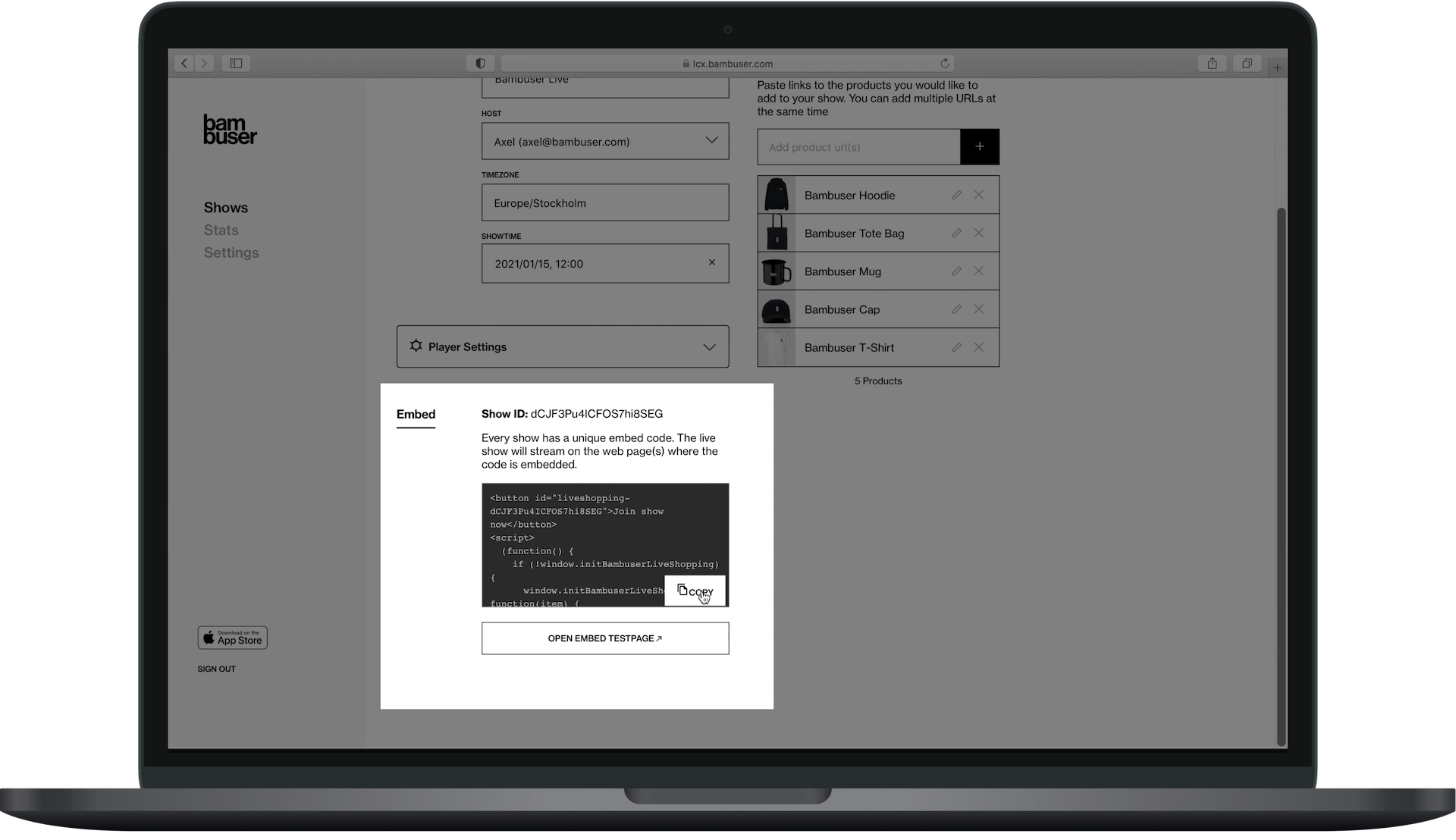
Add the code snippet to your landing page
Add a code snippet to your landing page. This can be done by adding it to your page through the source code, CMS editor, or tag managers such as GTM.
Example: Default embed code
- Global workspaces
- EU workspaces
For Bambuser workspaces on the Global dashboard, use following code:
<script>
(function() {
if (!window.initBambuserLiveShopping) {

  window.initBambuserLiveShopping = function(item) { window.initBambuserLiveShopping.queue.push(item) };

  window.initBambuserLiveShopping.queue = [];
  var scriptNode = document.createElement('script');
  scriptNode['src'] = 'https://lcx-embed.bambuser.com/default/embed.js';
  document.body.appendChild(scriptNode);
}

})();
</script>
For Bambuser workspaces on the European dashboard, use following code:
<script>
(function() {
if (!window.initBambuserLiveShopping) {

  window.initBambuserLiveShopping = function(item) { window.initBambuserLiveShopping.queue.push(item) };

  window.initBambuserLiveShopping.queue = [];
  var scriptNode = document.createElement('script');
  scriptNode['src'] = 'https://lcx-embed-eu.bambuser.com/default/embed.js';
  document.body.appendChild(scriptNode);
}

})();
</script>
If you log in to your workspace on lcx.bambuser.com, use the Global script.
If you log in to your workspace on lcx-eu.bambuser.com, use the EU script.
You should use the official Bambuser embed script (e.g., https://lcx-embed.bambuser.com/default/embed.js) instead of hosting a local or modified version.
Self-hosted or outdated copies can cause problems like incorrect price rendering, missing features, or broken functionality because they do not receive our ongoing updates. The official script is required for:
- Access to the Latest Features: It keeps your integration current with new enhancements and improvements we roll out regularly.
- Reliability and Stability: It’s fully tested and maintained by us, preventing errors that arise from outdated or untested code.
Find the correct embed code for your brand on the "Show setup" page on the workspace.
Yes, there is! Instead of embedding a single show, you can embed an entire library of shows and manage it directly through BamHub. Check out the Channels feature to learn more!
Inline player
To integrate a show on your website inline you can use the bam-inline-player web component that's available within our embed script. This will allow you to place a player in the position where you want your viewers to engage with the content and player UI directly on your website, instead of having the player being opened on-top of your existing website.
This player uses the same layouting rules as its corresponding overlay sibling, so depending on the aspect ratio of the show you're presenting in this container and which layout you hope to achieve in the inline player you are expected to control the size of the inline-player. We recommend you do not style it to be smaller than 320x320px in size.
Simply place this web component on a page where you also load our embed code. Set the show-id attribute of this component to the show id you'd wish to load:
<style>
  bam-inline-player {
    height: 960px;
    width: 540px;
  }
</style>
<bam-inline-player show-id=”SHOW_ID_HERE” />
The inline player experience is configurable the same way as the overlaid version of the player via window.onBambuserLiveShoppingReady. See Player API reference for all configuration options.
Currently the inline player does not support mini-player behaviour.