Bambuser Social Commerce SDK iOS
Overview
BambuserCommerceSDK is a lightweight SDK for integrating Bambuser video player and commerce experience into your android applications in order to enhance your app with interactive video commerce features that streamline the video shopping experience.
Requirements
The Bambuser Commerce SDK for iOS supports all Apple-supported Xcode versions and is compatible with apps targeting iOS 15 or above.To ensure full functionality of the SDK, you must add the -ObjC flag to your app target.
Installation
Swift Package Manager (SPM)
You can integrate the SDK using Swift Package Manager. Add the following dependency to your project:dependencies: [
.package(url: "https://github.com/bambuser/bambuser-commerce-sdk-ios", from: "3.0.0")
]
Please check our latest release versions here
Manual Installation
If you prefer to integrate the SDK manually, follow these steps:
- Download BambuserCommerceSDK.xcframework from releases page
- Drag and drop xcframework file to your project
Configure Shoppable Video in BamHub
Before you can load videos in the SDK, you need to prepare a playlist and a placement in your BamHub. The placement's Component ID is the value you will pass to the SDK to fetch the right playlist for a given surface in your app.
1. Open the Shoppable Video workspace
Sign in to your BamHub and switch to the Shoppable Video workspace. From here you have access to your videos, playlists and placements.
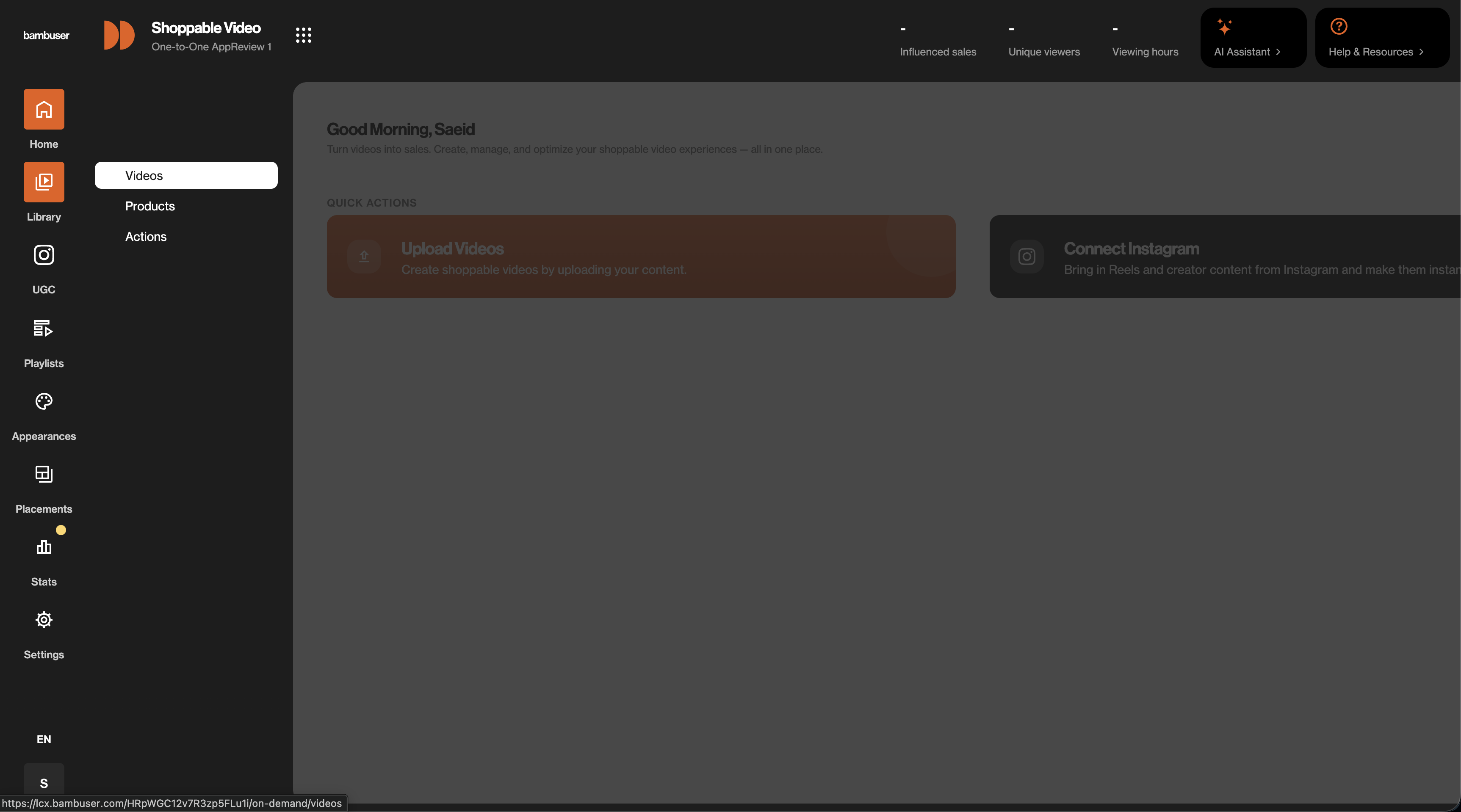
2. Add videos and group them into a playlist
Upload the videos you want to use, then open Playlists and create a playlist that contains the videos you want to surface in the app.
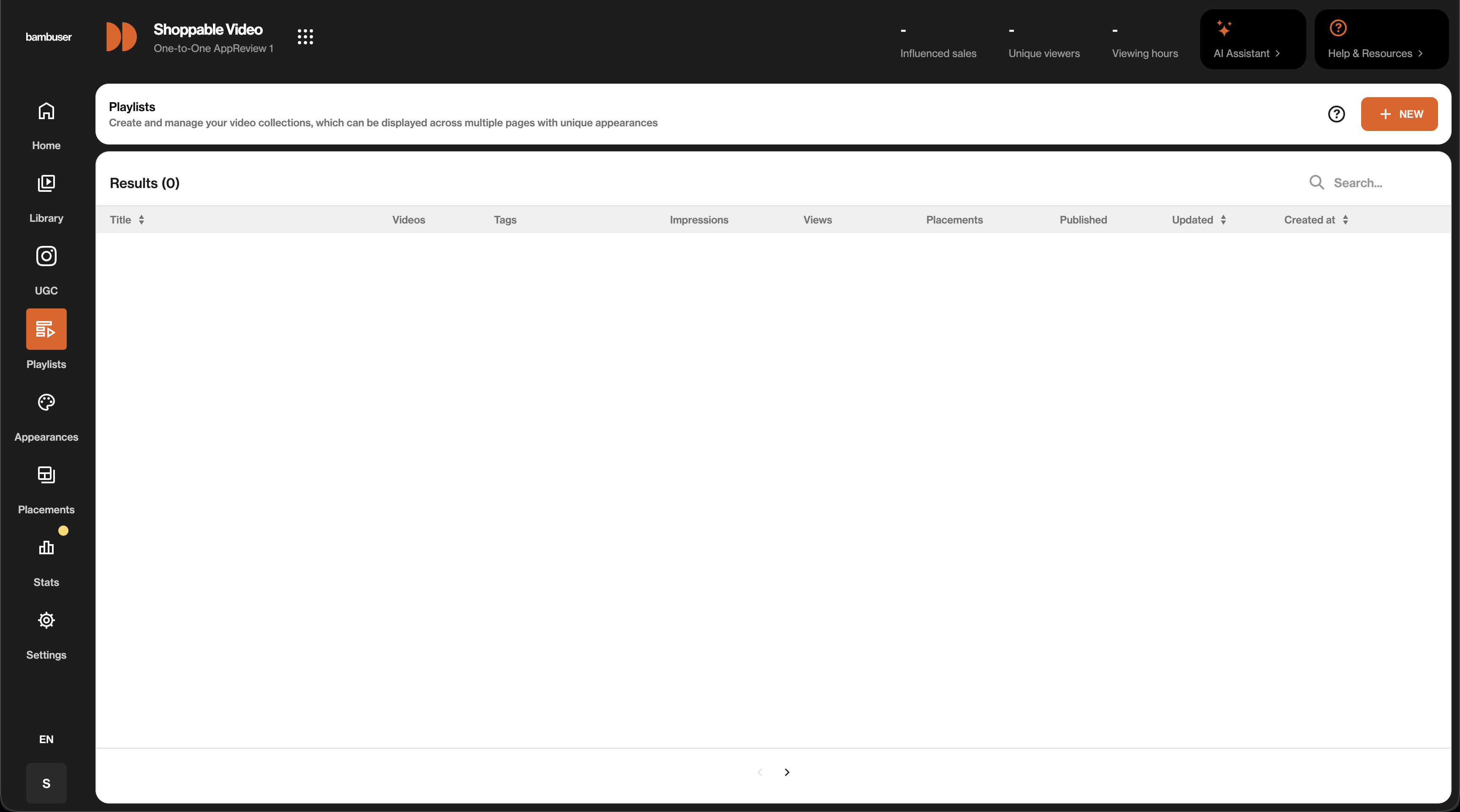
3. Create a new placement
Open Placements in the sidebar and click NEW to start a new placement. Placements are what bind a playlist to a specific surface in your app.
4. Add a placement rule with a Component ID
In the Setup tab, give the placement a title and add a new placement rule. Set Field to Component ID and Condition to Equals, then enter the value you want the app to use (for example home-page or mobile-sdk-tests).
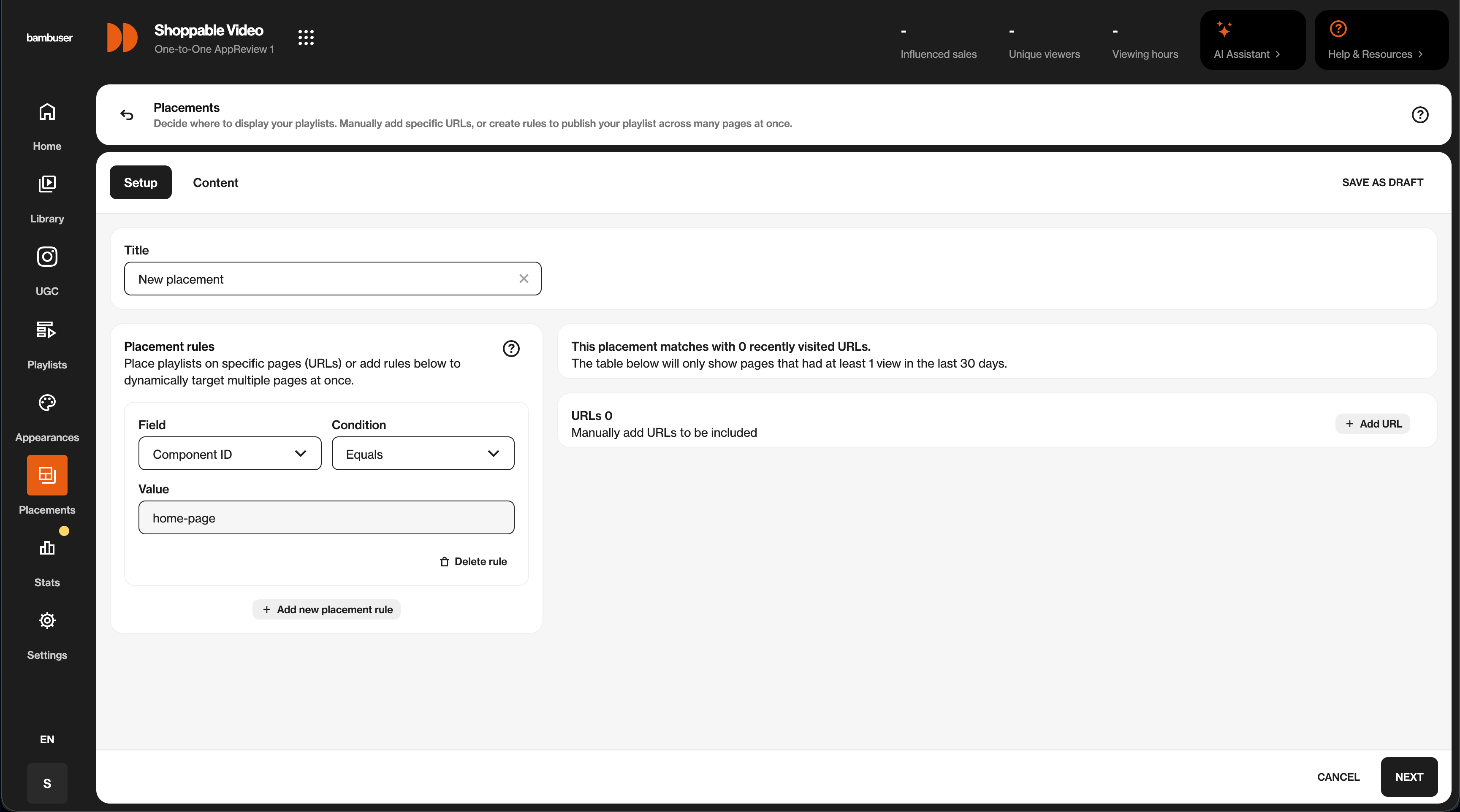
The Component ID is the same string you pass to the SDK in your mobile app. Choose a value that describes the surface where the playlist will appear so it stays easy to map between BamHub and your code.
5. Select the playlist and publish
Switch to the Content tab and pick the playlist you created (or create a new one inline). Click PUBLISH to make the placement live.
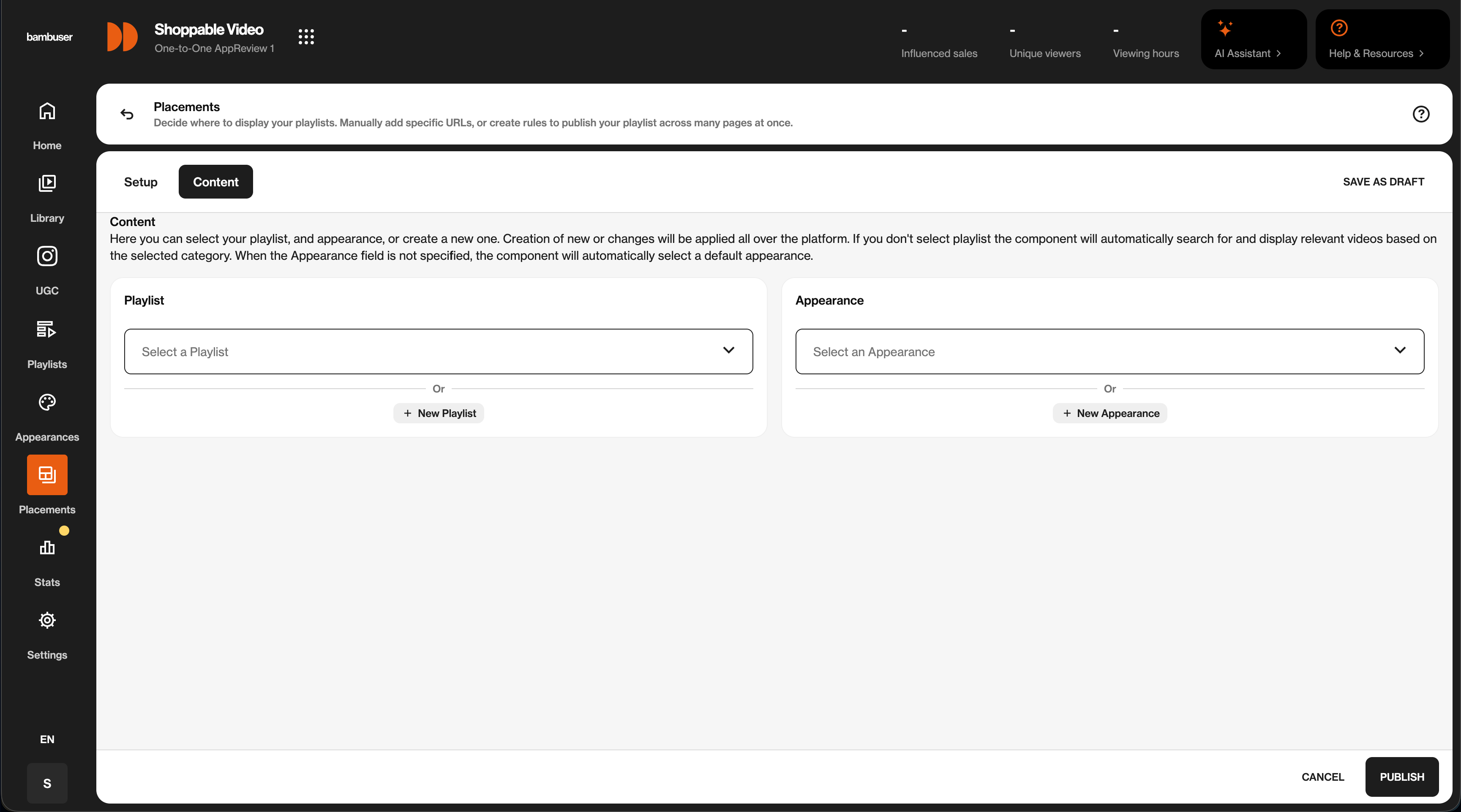
Once the placement is published, your app can load it through the SDK using the organization ID and the Component ID you just configured.
Player Initialization
The SDK provides flexible setup options so you can configure the player dynamically based on your needs supporting live, pre-recorded, and shoppable video.
For complete examples and working integrations, check out our example app.
Setup
Loading Shoppable Video via SDK is very simple, you can request the videos available in Bamhub.
Create Video Configuration
You need to create the configururation for each shoppable videos. The general configuration setup looks like below. For more details on video configurations please check our Preview API Reference and Player API Reference page.
let videoConfiguration: [String: Any] = [
        "thumbnail": [
            "enabled": true,
            "showPlayButton": true,
            "contentMode": "scaleAspectFill",
            "preview": nil
        ],
        "previewConfig": [:],
        "playerConfig": [
            "buttons": [
                "dismiss": "event",
                "product": "none"
            ]
        ]
    ]
Now you can use this configuration to load videos in three different ways
- Bind a playlist to a placement in BamHub and fetch it by its Component ID
- Construct a playlist via SKU. Fetch the videos where the product SKU is added
- Embed individual videos via the Video IDs. If you already have a Bambuser video ID.
Initialise Player
The Bambuser SDK provides a high degree of flexibility to configure the video player to fit your specific use case. You can control how videos are loaded, the behavior of the player, and the user interface. For complete examples and working integrations, check out our example app.
- Load by Component ID
- Load by SKU
- Load by Video ID
This is the most common method for displaying a curated collection of videos, such as those on a category page or a landing page. Pass the Component ID from your BamHub placement to load the entire playlist bound to that placement.
import BambuserCommerceSDK

// Initialize the Bambuser SDK with the server region
// You can choose between .US or .EU based on your region
let bambuser = BambuserSDK(server: .US) // or .EU

let videoContainerInfo = BambuserShoppableVideoPlaylistInfo(
    orgId: "xxx",
    componentId: "xxx"
)

let config = BambuserShoppableVideoConfiguration(
    type: .playlist(videoContainerInfo),
    events: ["*"],
    configuration: videoConfiguration
)
let views = try await bambuser.createShoppableVideoPlayerCollection(
    videoConfiguration: config,
    page: 1, // Pass value of page to fetch
    pageSize: 15
)

// Access pagination info
let currentPage = result.pagination.page
let totalPages = result.pagination.totalPages
let pageSize = result.pagination.pageSize
let totalItems = result.pagination.total

// Bind views to your UI
setupUI(for: views)
The componentId is the value you set on the placement rule in BamHub (see Configure Shoppable Video in BamHub). Use a value that maps cleanly to the surface in your app, such as home-page or product-details.
This configuration is ideal for product detail pages, allowing you to show all videos related to a specific product. The SDK will automatically create a playlist of all videos associated with the provided SKU.
import BambuserCommerceSDK

// Initialize the Bambuser video player with the server region
// You can choose between .US or .EU based on your region
let videoPlayer = BambuserVideoPlayer(server: .US) // or .EU

let videoContainerInfo = BambuserShoppableVideoSkuInfo(
    orgId: "xxx",
    sku: "xxx"
)

let config = BambuserShoppableVideoConfiguration(
    type: .sku(videoContainerInfo),
    events: ["*"],
    configuration: videoConfiguration
)

let views = try await bambuserPlayer.createShoppableVideoPlayerCollection(
    videoConfiguration: config,
    page: 1, // Pass value of page to fetch
    pageSize: 15
)

// Bind views to your UI
setupUI(for: views)

// Access pagination info
let currentPage = result.pagination.page
let totalPages = result.pagination.totalPages
let pageSize = result.pagination.pageSize
let totalItems = result.pagination.total
If you have a specific video you want to play—for example, a hero video on your homepage—you can load it directly using its unique Video ID.
import BambuserCommerceSDK

// Initialize the Bambuser video player with the server region
// You can choose between .US or .EU based on your region
let videoPlayer = BambuserVideoPlayer(server: .US) // or .EU

let config = BambuserShoppableVideoConfiguration(
    type: .videoId("xxx"),
    events: ["*"],
    configuration: videoConfiguration
)

shoppableVideo = try await bambuserPlayer.createShoppableVideoPlayer(
    videoConfiguration: config
)
// Bind views to your UI
setupUI(for: views)
Delegate Protocol
The BambuserCommerceSDK provides the BambuserVideoPlayerDelegate protocol for handling communications from a Bambuser video player instance. By implementing this protocol, your class can receive callback messages when new events occur or errors are encountered.
Available Methods:
class ViewController: BambuserVideoPlayerDelegate {
    func onNewEventReceived(id: String, event: BambuserEventPayload) {
        print("Player \(id) sent event: \(event)")
    }

    func onErrorOccurred(id: String, error: Error) {
        print("Error in player \(id): \(error.localizedDescription)")
    }

    func onVideoStatusChanged(_ id: String, state: BambuserVideoState) {
        print("Player \(id) changed state to: \(state)")
    }

    func onVideoProgress(_ id: String, duration: Double, currentTime: Double) {
        print("Player \(id) progress: \(currentTime)/\(duration) seconds")
    }

    func onThumbnailTapped(_ id: String) {
        print("Player [\(id)] thumbnail was tapped")
    }
}
For more detailed information please check our Github Repo
Conversion Tracking
Bambuser Conversion Tracking for Shoppable Videos gives you the most value out of your Shoppable videos performance statistics. The Bambuser Conversion tracker enables merchants to attribute the relevant conversions to the Shoppable videos.
To track conversions within the BambuserCommerceSDK, utilize the track function provided by the BambuserPlayerView.
This function transmits necessary data sets to Bambuser Analytics.
let response = try? await self.playerView.track(
    event: "purchase",
    with: [
      "transaction": [
        "id":"abcd",
        "subtotal":70.99,
        "currency":"USD",
        "total":74.98,
        "tax":14.2,
        "shippingCost":3.99,
        "shippingMethod":"Store pickup",
        "coupon":"SUMMER_SALE",
      ],
      "products": [
        [
              "id":"314-7216-102",
              "name":"Tennis Shoe Classic - Size 10",
              "image":"https://example.com/images/314-7216-102.jpg",
              "price":70.99,
              "currency":"USD",
              "quantity":1,
              "brand":"Plausible Co.",
              "category":"Footwear > Sports > Tennis",
              "location":"https://example.com/products/314-7216"
          ]
        ]
    ]
)
To log an event, you must supply and include additional data as a dictionary with string keys and values of any type ([String: Any?]). Note that the example format is for illustrative purposes only. For the precise data structure required for each event, please refer to our Github Repo.
Configuration and Functions:
To find the detailed configuration and functions please refer to Bambuser Player API Reference