Track Shopper Events
If you have Live, Video Consultation or Shoppable Video integrated on the same website, you only need to implement these enhanced tracking events once.
- You must have already integrated a Bambuser product (Live Shopping, Shoppable Video, or Video Consultation) on your website.
- Ensure your website's cookie consent mechanism allows for the necessary Bambuser cookies (
_bamls_usid,_bamls_lcte) to be set for users who have consented, as tracking relies on these cookies.
Did you implement Bambuser's Conversion Tracker before June 2025, see Migrating from Legacy Conversion Tracking for details on how to migrate to the new Shopper Events Tracking.
Conversion Tracker now refers to the purchase tracking event. This is the primary event used to track completed purchases and measure conversion rates from Bambuser related interactions.
Introduction
The Shopper Events Tracking lets you send events that happen, outside of Bambuser applications, on the brand's website (e.g., your e-commerce site) — such as product views, add-to-cart, add-to-wishlist, and purchases — to Bambuser. Bambuser then attributes those events to the sessions of shoppers who interacted with a Bambuser product (Live, Shoppable Video, or Video Consultation) and surfaces the resulting insights and analytics in BamHub.
In short:
- What you instrument: events on your own website (the merchant site).
- Where the data goes: to Bambuser data warehouse.
- What you get back: On BamHub you will have them in forms of:
- Attributed shopper insights
- Conversion/Sales analytics
- Exportable reports in CSV or JSON
This guide covers events that occur on the brand's website (e.g., your e-commerce site) and are sent to Bambuser.
If you are instead looking for events fired from inside the Bambuser player (e.g. show loaded, product clicked, viewer count) that you can listen to and forward to your own analytics, see Player Metrics.
How it works
Bambuser tracking requires cookies to be set to function correctly. You are responsible for configuring cookie settings during the implementation of each Bambuser product. If you use our tracking library but the required Cookies have not been set, the tracking library will not send any data to Bambuser.
Cookies
Bambuser applications automatically sets the cookies below. These cookies are used by the application tracking itself and the Bambuser Shopper Events Tracker to find out whether a purchase is relevant to track to Bambuser. If the below cookies exist and are valid, the purchase is considered as a conversion and is tracked. If cookies are restricted, removed, or expired, Bambuser Shopper Events Tracker does not track the purchase.
| Name | Required | Expiration date | Product | Description |
|---|---|---|---|---|
| _bamls_lcte | Yes | 30 days (Configurable for Live and Shoppable Video) |
| Structured data containing expiry timestamps for relevant server locations after which purchases will no longer be applicable for conversion tracking. |
| _bamls_usid | Yes | 1 year |
| Unique identifier for a user. Used to attribute Bambuser statistics to a single site user. |
| _bamls_seid | Yes | 30 min |
| Unique identifier for a session in which a Bambuser show or video was watched. Used in tracking to attribute statistics to a single session. |
| _bamls_cuid | Will be replaced by _bamls_lcte | 1 year |
| Unique identifier for the merchant. Used as a common denominator for all tracking performed by Bambuser to easily enable reporting and workspaces per merchant. |
| _bamls_caid | Only for legacy attribution, replaced by _bamls_lcte | 30 days |
| Unique identifier for the last Bambuser call that the user had on the merchant site. Used to attribute Bambuser statistics to a specific customer interaction. |
| _bamls_shid | Only for legacy attribution, replaced by _bamls_lcte | 30 days (Configurable) |
| Unique identifier for a Bambuser show. Used to attribute statistics to a single show. This also - similar to source/medium in Google Analytics - enables attribution of purchases (that do not occur within the embedded stream) towards the show. |
| _bamls_lits | Only for legacy attribution, replaced by _bamls_lcte | 30 days (Configurable) |
| The timestamp for the last known interaction in a Bambuser show. This is used in conjunction with _bamls_shid to measure at what point in time after a user viewed a show, the actual purchase was made. |
Cookie Consent Categorization and Privacy Policy
The Bambuser cookies are first-party cookies that store only anonymous, randomly generated identifiers. They contain no personal data and are not used for advertising or cross-site tracking — they exist solely to measure shopper interaction with Bambuser experiences and attribute conversions.
Because each implementation combines this data with its own data collection setup, we cannot provide universal categorization or privacy policy text. The guidance below is a starting point only.
Suggested consent categorization & privacy policy wording
The guidance below is only a suggestion. You are responsible for how you categorize these cookies and describe them in your privacy policy, based on the cookie descriptions above, your overall data collection setup, and your own legal review.
Suggested consent categorization
As anonymous first-party identifiers used for measurement and attribution, the Bambuser cookies generally fit a Statistics / Analytics / Performance category in most consent tools. If a shopper declines this category, Bambuser products keep working normally, but their interaction and conversion data is not collected.
Example privacy policy
Consider a short description along these lines, adapted to your own wording:
We use Bambuser to provide interactive video shopping experiences. These experiences set first-party cookies (prefixed
_bamls_) that contain only randomly generated identifiers, used to analyze how the experiences are used and to attribute purchases and other shopping activity to them.
You may also want to list the individual cookies, their lifetimes, and purposes (see the table above) in your cookie list.
Example User flow
- A shopper visits your website and interacts with a Bambuser product (e.g., watches a Live stream, views a Shoppable Video, or books a meeting for Video Consultation).
- The Bambuser embed script sets the
_bamls_usid,_bamls_lcte, etc. cookies in the user's browser - The shopper adds a product to their cart or wishlist, or makes a purchase. (This can happen days after the initial interaction with the Bambuser product)
- The Bambuser tracking library is called to send the event data to Bambuser
- Bambuser processes the data and provides insights into the shopper's behavior and interactions with Bambuser products on your website and their subsequent journey. This helps you understand the impact of Bambuser products on your website's performance and conversion rates.
Implementation Options
You can choose to implement the Bambuser tracking library in three ways. Click any option below to jump to the relevant guide.
- Directly on your website: Send events directly to Bambuser without any additional setup.
- Using Google Tag Manager: Send events to Bambuser using the Google Tag Manager template. Useful if you are already using a tag manager to manage your website's tracking.
- Using Shopify Custom Pixel: Send events to Bambuser from your Shopify store using a Shopify Custom Pixel. Recommended if your storefront is built on Shopify.
Direct Implementation
The Bambuser tracking library is a JavaScript library that allows you to track shopper events on your website. It is designed to be easy to implement and can be used with any website.
The implementation requires three building blocks on your page:
Setup and usage
This section covers the building blocks you need: loading the library, calling track(), and structuring event data.
1. Include the tracking library
To enable event tracking, add the appropriate script tag to your website's HTML. It's generally recommended to place scripts before the closing </body> tag, but they can also be placed in the <head>.
‼️ The Global and EU servers are isolated — events sent to one region are not visible in the other. Make sure to use the script that matches your BamHub region.
- Global Servers
- EU Specific Servers
<script src="https://cdn.liveshopping.bambuser.com/metrics/bambuser.min.js"></script>
<script src="https://cdn.liveshopping.bambuser.com/metrics/bambuser-eu.min.js"></script>
Once the script has loaded, the window._bambuser object is available — including the track() method used to send events.
If your website is connected to both Bambuser data regions, it is sufficient to include only one of the scripts.
The Bambuser tracking library will automatically detect from the users _bamls_lcte cookie which data region to send the events to.
2. The track() method
Method signature
window._bambuser.track(eventType, eventData, options?) => Promise<Result>
Arguments
| Argument | Type | Required | Description |
|---|---|---|---|
eventType | String | Yes | One of the supported events (e.g. purchase, add-to-cart). |
eventData | Object | Yes | The event payload. Shape depends on eventType — see Event reference. |
options | Object | No | Additional options. See Options below. |
Return value
The method returns a Promise that resolves with a Result object:
| Field | Type | Description |
|---|---|---|
success | Boolean | true if the event was delivered to all relevant tracking endpoints. |
message | String | Human-readable status message. On failure, contains the validation or delivery error. |
The promise always resolves (it does not reject); inspect result.success to determine the outcome.
Options
| Field | Type | Description |
|---|---|---|
callbacks.onSuccess | Function | Invoked with the Result object after a successful delivery. |
callbacks.onFailure | Function | Invoked with the Result object on validation or delivery failure. |
Use callbacks when you cannot await the returned promise (for example, in environments where async/await is unavailable, such as some tag managers).
Usage examples
Using async/await (Recommended):
const result = await window._bambuser.track('add-to-cart', { products: [/* ... */] });
if (!result.success) {
  console.warn('Bambuser tracking failed:', result.message);
}
Using callbacks:
window._bambuser.track(
  'add-to-cart',
  { products: [/* ... */] },
  {
    callbacks: {
      onSuccess: (result) => console.log(result.message),
      onFailure: (result) => console.warn(result.message),
    },
  },
);
Implementation example
The following example combines loading the tracking library and sending events into a single, copy-pasteable snippet. It loads the script programmatically and ensures events are only sent after the library is ready.
Make sure each event is tracked only once — for example, call track() in your order confirmation logic, not on every page render.
- Async
- Callback-based
Recommended approach for most websites where async/await is supported.
<script>
  // For EU BamHub, use: https://cdn.liveshopping.bambuser.com/metrics/bambuser-eu.min.js
  const TRACKING_URL = 'https://cdn.liveshopping.bambuser.com/metrics/bambuser.min.js';

  // Load the library and resolve when ready
  let scriptReady = new Promise((resolve) => {
    const script = document.createElement('script');
    script.src = TRACKING_URL;
    script.onload = resolve;
    document.head.appendChild(script);
  });

  // Can track events immediately — it waits for the script automatically
  async function trackBambuserEvent(eventType, eventData) {
    await scriptReady;
    const result = await window._bambuser.track(eventType, eventData);
    if (result.success) {
      console.log('[Bambuser] Event tracked:', eventType);
    } else {
      console.warn('[Bambuser] Tracking failed:', eventType, result.message);
    }
  }
</script>
Usage example:
// Call this when the shopper adds a product to cart on your website
trackBambuserEvent('add-to-cart', { products: [{ id: '314', price: 70.99, currency: 'USD', quantity: 1 }] });
Useful in environments where async/await is restricted, such as Google Tag Manager custom HTML tags.
<script>
  // For EU BamHub, use: https://cdn.liveshopping.bambuser.com/metrics/bambuser-eu.min.js
  const TRACKING_URL = 'https://cdn.liveshopping.bambuser.com/metrics/bambuser.min.js';

  // Queue events until the library is loaded
  let queue = [];

  function trackBambuserEvent(eventType, eventData) {
    queue.push({ eventType, eventData });
  }

  // Load library, then flush the queue and swap to direct tracking
  const script = document.createElement('script');
  script.src = TRACKING_URL;
  script.onload = () => {
    const callbacks = {
      onSuccess: (result) => console.log('[Bambuser] Event tracked:', result.message),
      onFailure: (result) => console.warn('[Bambuser] Tracking failed:', result.message),
    };
    queue.forEach(({ eventType, eventData }) => {
      window._bambuser.track(eventType, eventData, { callbacks });
    });
    // Override to send directly from now on, bypassing the queue
    trackBambuserEvent = (eventType, eventData) => {
      window._bambuser.track(eventType, eventData, { callbacks });
    };
  };
  document.head.appendChild(script);
</script>
Usage example:
// Call this when the shopper adds a product to cart on your website
trackBambuserEvent('add-to-cart', { products: [{ id: '314', price: 70.99, currency: 'USD', quantity: 1 }] });
Event reference
The examples below show only the eventData argument. Ensure the tracking library is loaded as described in Setup and usage.
- Purchase
- Add to Cart
- Update Cart
- Add to Wishlist
- Remove from Wishlist
- Product View
- Refund
The product-view event gives Bambuser information about what products the shopper has viewed.
This data can be displayed in customer insight views or utilized for advanced attribution analytics.
| Name | Value | Type | Required | Description |
|---|---|---|---|---|
| eventType | product-view | String | Yes | Identifies the event type. Must be 'product-view'. |
| products | See example | Array<ProductObject> | Yes | An array containing details of the viewed product(s). |
window._bambuser.track(
  'product-view',
  {
    products: [
      {
        id: '314-7216-102',
        name: 'Tennis Shoe Classic - Size 10',
        image: 'https://example.com/images/314-7216-102.jpg',
        price: 70.99,
        currency: 'USD',
        brand: 'Plausible Co.',
        category: 'Footwear > Sports > Tennis',
        location: 'https://example.com/products/314-7216',
      },
    ],
  },
);
The purchase event will provide insights into conversion rates and product performance through the different Bambuser tools.
| Name | Value | Type | Required | Description |
|---|---|---|---|---|
| eventType | purchase | String | Yes | Identifies the event type. Must be 'purchase'. |
| transaction | See example | TransactionObject | Yes | An object containing details of the transaction. |
| products | See example | Array<ProductObject> | Yes | An array of product objects included in the purchase. |
window._bambuser.track(
  'purchase',
  {
    transaction: {
      id: 'abcd',
      currency: 'USD',
      subtotal: 70.99, // Monetay value of order, price * quantity of all products. Tax, shipping cost and order level discount excluded
      total: 81.25, // subtotal - discount + tax + shippingCost
      discount: 2.00, // Order level discount applied to the subtotal. Product level discount should already be included in the subtotal price
      tax: 8.27,
      shippingCost: 3.99,
      shippingMethod: 'Home delivery',
      coupon: 'SUMMER_SALE', // Coupon applied to transaction rather than individual product
    },
    products: [ // This is an array of products purchased
      {
        id: '314-7216-102',
        name: 'Tennis Shoe Classic - Size 10',
        image: 'https://example.com/images/314-7216-102.jpg',
        price: 70.99, // Original price 75.99
        currency: 'USD',
        discount: 5.00, // The discount applied to this product, if applicable
        coupon: 'SUMMER_SALE', // The coupon applied to this product, if applicable
        quantity: 1,
        brand: 'Plausible Co.',
        category: 'Footwear > Sports > Tennis',
        location: 'https://example.com/products/314-7216',
      },
    ],
  }
);
The add-to-cart event provides insights into conversion rates and product performance across various Bambuser tools.
| Name | Value | Type | Required | Description |
|---|---|---|---|---|
| eventType | add-to-cart | String | Yes | Identifies the event type. Must be 'add-to-cart'. |
| products | See example | Array<ProductObject> | Yes | An array of product objects added to the cart. |
window._bambuser.track(
  'add-to-cart',
  {
    products: [
      {
        id: '314-7216-102',
        quantity: 1,
        name: 'Tennis Shoe Classic - Size 10',
        image: 'https://example.com/images/314-7216-102.jpg',
        price: 70.99,
        currency: 'USD',
        brand: 'Plausible Co.',
        category: 'Footwear > Sports > Tennis',
        location: 'https://example.com/products/314-7216',
      },
    ],
  },
);
The update-cart event should be triggered when a shopper modifies the quantity of an item in their cart or removes an item from it.
To indicate item removal, set its quantity to 0. The quantity field should reflect the new total quantity of that specific item in the cart after the update.
This data enables Bambuser to provide deeper insights into conversion rates and product performance.
| Name | Value | Type | Required | Description |
|---|---|---|---|---|
| eventType | update-cart | String | Yes | Identifies the event type. Must be 'update-cart'. |
| products | See example | Array<ProductObject> | Yes | An array of product objects with updated quantities. |
window._bambuser.track(
  'update-cart',
  {
    products: [
      {
        id: '314-7216-102',
        quantity: 1,
        name: 'Tennis Shoe Classic - Size 10',
        image: 'https://example.com/images/314-7216-102.jpg',
        price: 70.99,
        currency: 'USD',
        brand: 'Plausible Co.',
        category: 'Footwear > Sports > Tennis',
        location: 'https://example.com/products/314-7216',
      },
    ],
  },
);
The add-to-wishlist event should be used if your e-commerce site features wishlist functionality.
Wishlists allow shoppers to save items for later consideration without adding them to the cart immediately. This is useful if a product is out of stock, or if the shopper isn't ready to purchase but wants to easily find the product later.
Sending these events enables the Bambuser platform to offer greater insights into product performance.
| Name | Value | Type | Required | Description |
|---|---|---|---|---|
| eventType | add-to-wishlist | String | Yes | Identifies the event type. Must be 'add-to-wishlist'. |
| products | See example | Array<ProductObject> | Yes | An array of product objects added to the wishlist. |
window._bambuser.track(
  'add-to-wishlist',
  {
    products: [
      {
        id: '314-7216-102',
        name: 'Tennis Shoe Classic - Size 10',
        image: 'https://example.com/images/314-7216-102.jpg',
        price: 70.99,
        currency: 'USD',
        brand: 'Plausible Co.',
        category: 'Footwear > Sports > Tennis',
        location: 'https://example.com/products/314-7216',
      },
    ],
  },
);
The remove-from-wishlist event should be triggered when a shopper removes an item from their wishlist.
This helps maintain accurate data on product interest and wishlist engagement.
| Name | Value | Type | Required | Description |
|---|---|---|---|---|
| eventType | remove-from-wishlist | String | Yes | Identifies the event type. Must be 'remove-from-wishlist'. |
| products | See example | Array<ProductObject> | Yes | An array of product objects removed from the wishlist. |
window._bambuser.track(
  'remove-from-wishlist',
  {
    products: [
      {
        id: '314-7216-102',
        name: 'Tennis Shoe Classic - Size 10',
        image: 'https://example.com/images/314-7216-102.jpg',
        price: 70.99,
        currency: 'USD',
        brand: 'Plausible Co.',
        category: 'Footwear > Sports > Tennis',
        location: 'https://example.com/products/314-7216',
      },
    ],
  },
);
The refund event is used to track product refunds. This information helps maintain accurate sales and performance data within Bambuser analytics.
| Name | Value | Type | Required | Description |
|---|---|---|---|---|
| eventType | refund | String | Yes | Identifies the event type. Must be 'refund'. |
| transaction | See example | TransactionObject | Yes | An object containing details of the refunded transaction. |
| products | See example | Array<ProductObject> | Yes | An array of product objects that were refunded. |
window._bambuser.track(
  'refund',
  {
    transaction: {
      id: 'abcd',  // Preferred to reference the transaction ID of the original order, otherwise unique for this refund
      subtotal: 70.99, // The price * quantity of all products in products array
      currency: 'USD',
      discount: 2.00, // The total discount applied to the original order, if applicable
      total: 87.18, // Total amount refunded, which is the subtotal - discount + shippingCost (if refunded) + tax
      tax: 14.2, // Tax related to the refunded products, if applicable
      shippingCost: 3.99, // The shipping cost for the original purchase
      shippingMethod: 'Home delivery',
      coupon: 'SUMMER_SALE', // The coupon used for the original purchase, if applicable
    },
    products: [ // Array of products that were refunded
      {
        id: '314-7216-102',
        quantity: 1,
        name: 'Tennis Shoe Classic - Size 10',
        image: 'https://example.com/images/314-7216-102.jpg',
        price: 70.99, // Monetary value of the product, discount already applied. Original price 75.99 in this example
        discount: 5.00, // The discount of product in original purchase, if applicable
        coupon: 'SUMMER_SALE', // The coupon used in the original purchase, if applicable
        currency: 'USD',
        brand: 'Plausible Co.',
        category: 'Footwear > Sports > Tennis',
        location: 'https://example.com/products/314-7216',
      },
    ],
  },
);
Product Object
The Product Object is used to provide detailed information about a product in the context of Bambuser tracking events. It includes essential attributes that help identify and describe the product being tracked.
| Name | Value | Type | Required | Description |
|---|---|---|---|---|
| id | 314-7216-102 | String | Yes | The unique identifier of the product. |
| price | 70.99 | Number | Yes | The monetary value of the product, discount already applied. Original price 75.99 in this example. |
| currency | USD | String | Yes | The currency of the product price. ISO 4217 three-letter code (e.g. USD, EUR). |
| quantity | 1 | Number | Yes* | The quantity of the product being added to cart/removed/purchased/refunded. Not required for product-view, add-to-wishlist, and remove-from-wishlist (forced to 1). |
| name | Tennis Shoe Classic - Size 10 | String | No | The name of the product. |
| image | https://example.com/images/314-7216-102.jpg | String | No | The URL of the product image. |
| discount | 5.00 | Number | No | The discount applied to this product, if applicable. |
| coupon | SUMMER_SALE | String | No | The coupon used in the original purchase, if applicable. |
| brand | Plausible Co. | String | No | The brand of the product. |
| category | Footwear > Sports > Tennis | String | No | The category of the product. |
| location | https://example.com/products/314-7216 | String | No | The URL of the product page. |
Transaction Object
The Transaction Object is used to provide detailed information about a transaction in the context of Bambuser tracking events. It includes essential attributes that help identify and describe the transaction being tracked.
This object is particularly important for the purchase and refund events, as it contains information about the transaction ID, total amount, and other relevant details.
| Name | Value | Type | Required | Description |
|---|---|---|---|---|
| id | abcd | String | Yes | The unique identifier of the transaction. For refunds, preferably reference the original order's transaction ID; otherwise use a unique ID for the refund. |
| subtotal | 70.99 | Number | Yes | The sum of price * quantity across all items in the products array. Excludes order-level discount, tax, and shipping cost. |
| currency | USD | String | Yes | The currency of the transaction. ISO 4217 three-letter code (e.g. USD, EUR). |
| total | 87.18 | Number | Yes | The total transaction amount: subtotal - discount + tax + shippingCost. For refunds, the total amount refunded. |
| tax | 14.2 | Number | Yes | The tax amount for the transaction. |
| shippingCost | 3.99 | Number | Yes | The shipping cost for the transaction. |
| discount | 2.00 | Number | No | Order-level discount applied to the subtotal. Product-level discounts should already be reflected in each product's price. |
| coupon | SUMMER_SALE | String | No | The coupon code applied to the transaction, if applicable. |
| shippingMethod | Home delivery | String | No | The shipping method used for the transaction. |
Verify the implementation
See Verification for how to test the implementation.
Google Tag Manager Implementation
1. Installing the Bambuser Live Shopping tag
Our tag is available on Google Tag Manager Community Template Gallery. To find it, you simply:
- Go to "Templates" in the left hand side menu
- Under "Tag Templates", press the Search Gallery button
- You should now see the "Import Tag Template" view. Either search for (search icon in the top right) "Bambuser Live Shopping" or simply scroll down until you find it and click on it.
You should now see the view below. Click "Add to workspace" and confirm the required permissions by pressing "Add" in the popup that appears. That's it!
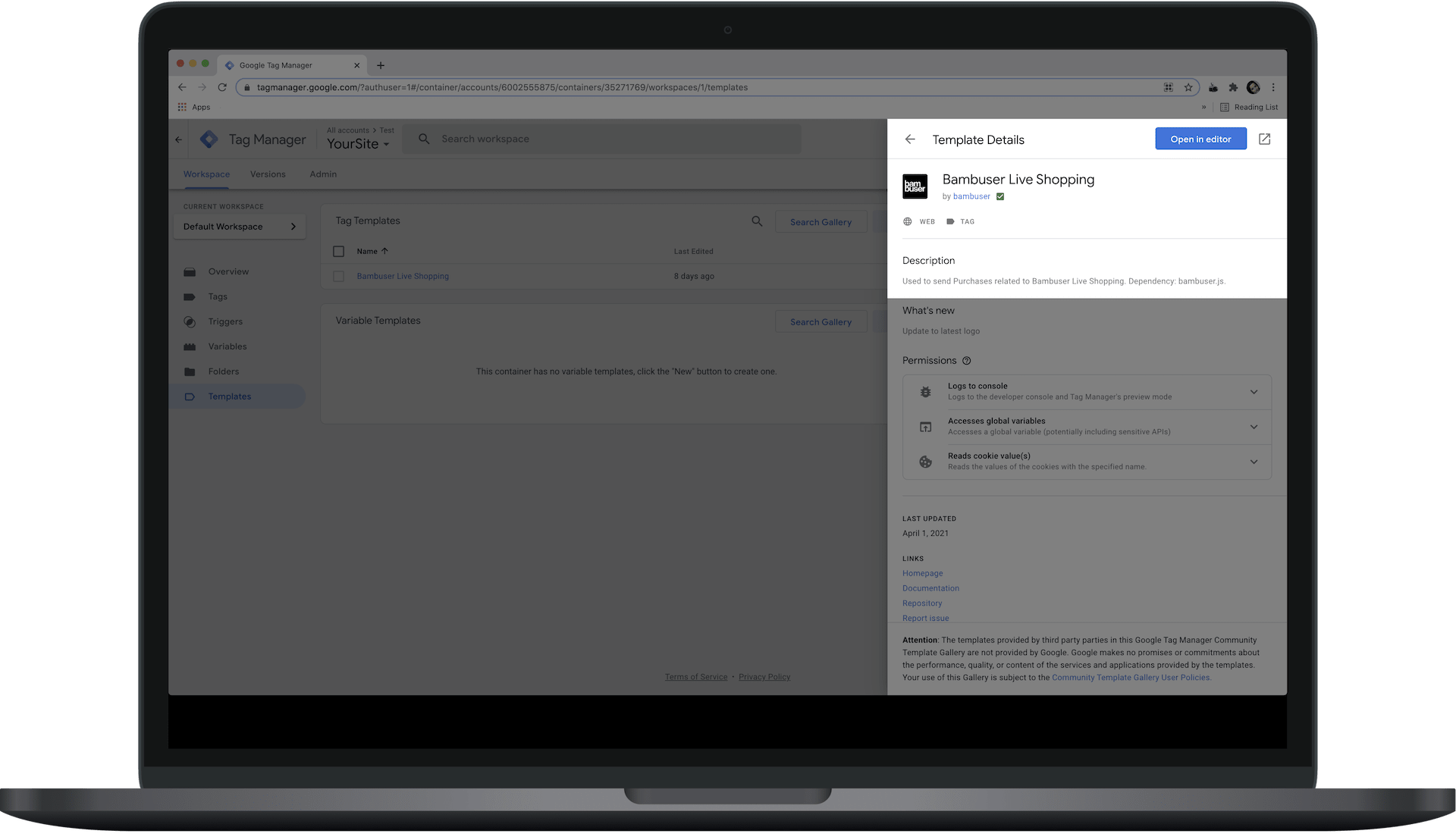
We may update the tag. When we do, you will be notified in Google Tag Manager that an update is available.
2. Set up a tag
You can either start from Bambuser's recipe or create the tag manually. Using the recipe and configuring it to your needs is the recommended way to go.
- Start with Recipe
- Manual setup
-
Import recipe
If you'd like to start with a pre-configured example, you can download and import the GTM recipe. This recipe will create the required variables, triggers, and tags for you.
This recipe builds on Google Analytics Ecommerce standard. If you are already using this standard, you will need minimal or no extra configuration from the imported recipe.
Even if you do not use Google Analytics Ecommerce standard, it may be easier to start with the recipe and edit the variables rather than doing everything manually.
Download the recipe
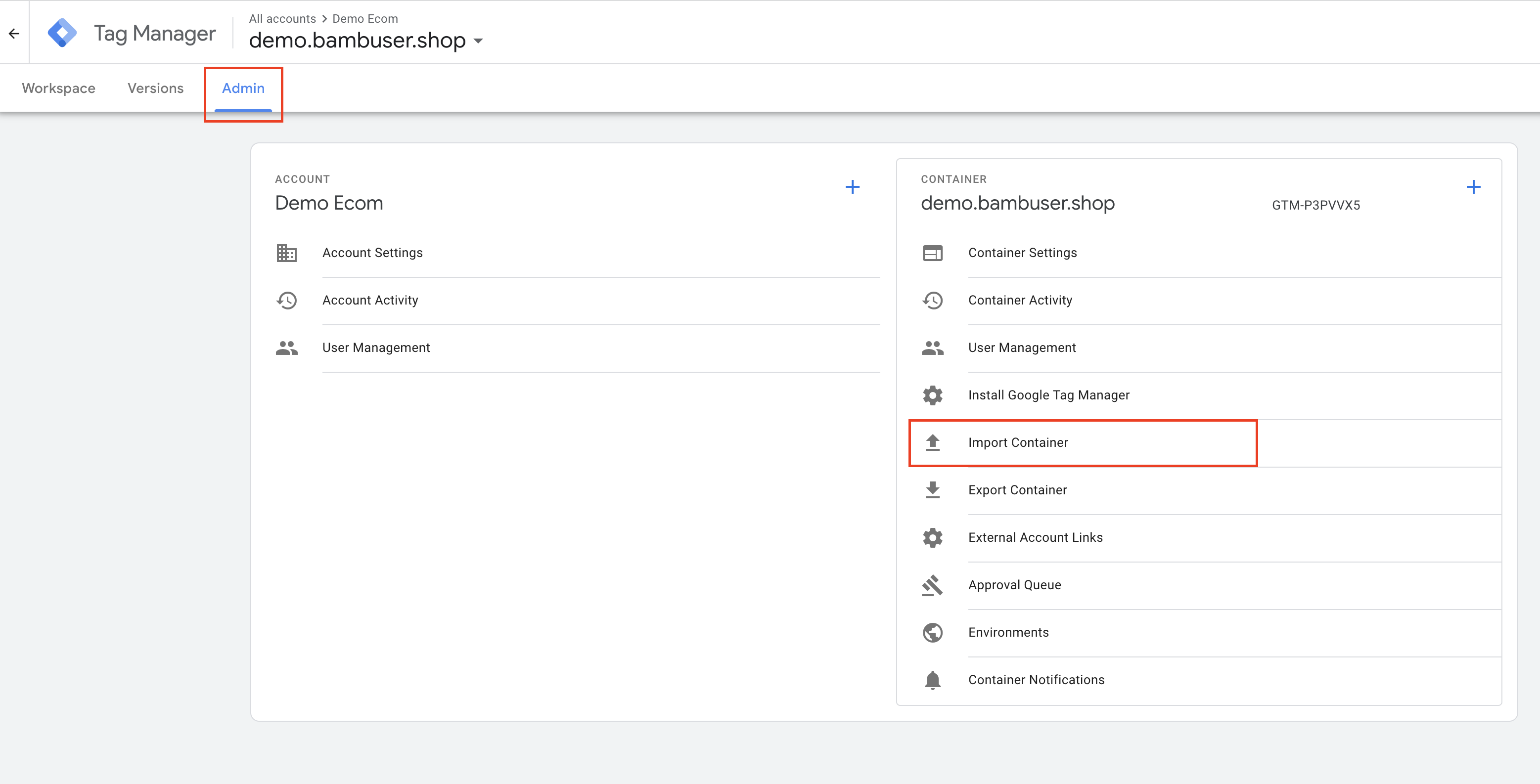
To import the recipe, go to Admin > Import Container in GTM
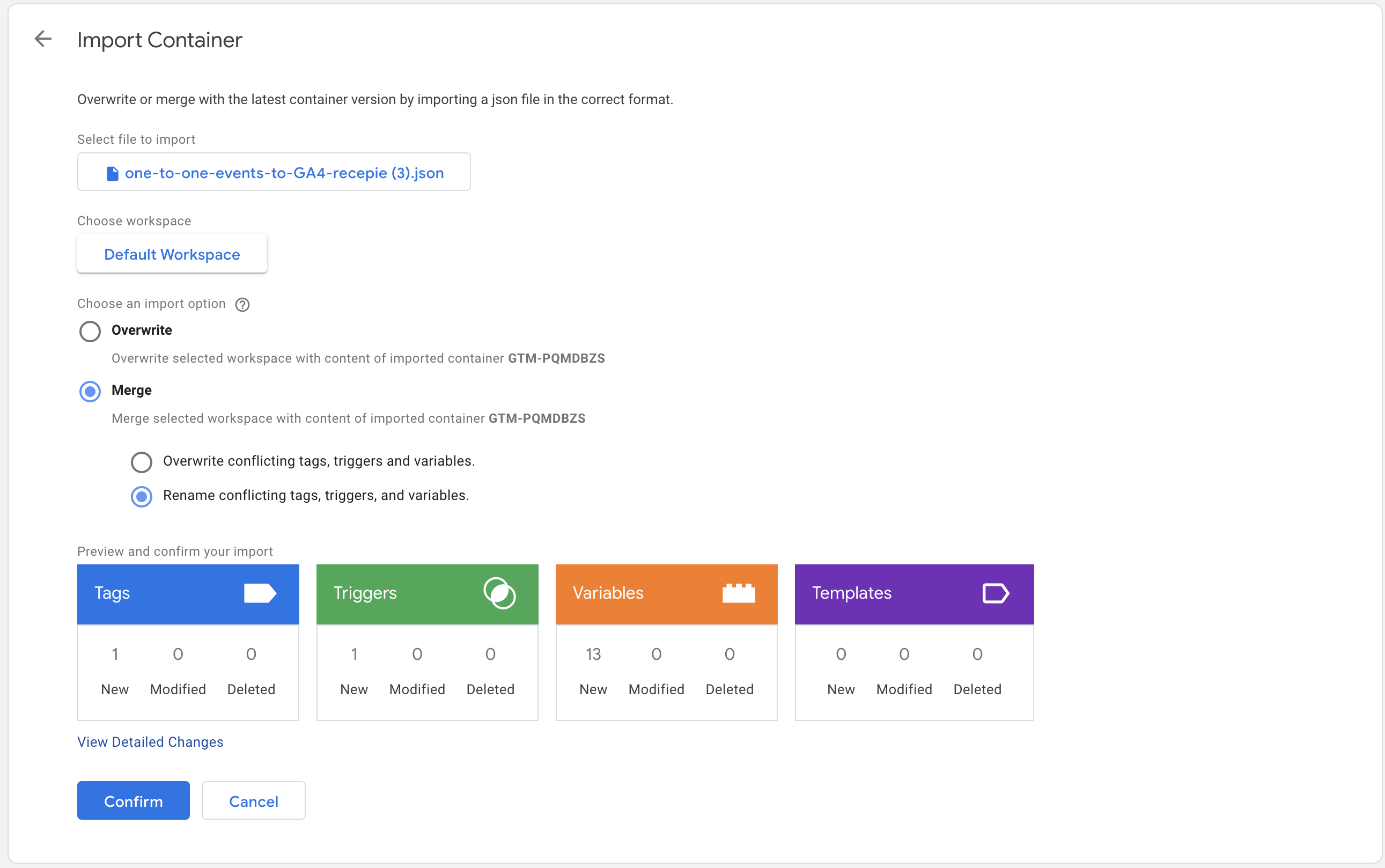
Select what tags, variables and triggers to import
-
Edit to your need
If you use some other standard than Google Analytics Ecommerce standard, you can edit the variables to your needs. Important things to edit:cjs - Bambuser Products ObjectVerify the field mappings from where it picks the product information in the datalayer.cjs - Bambuser Transaction ObjectVerify the field mappings from where it picks the transaction information in the datalayer.- Verify the triggers for each of the Event tags are triggers that your site is generating. Or disable the Tags for the events that you do not want to track.
-
Setup required variables You will need to configure GTM variables that resolve to a
Bambuser Transaction Object(for purchase/refund events) and aBambuser Products Array. These can be Custom JavaScript variables (similar to Bambuser's recipe) or Data Layer Variables that pull data directly from your data layer. The structure of these objects should align with the schemas detailed in the Direct Implementation event descriptions.Example products array:
[{id: "314-7216-102",name: "Tennis Shoe Classic - Size 10",image: "https://example.com/images/314-7216-102.jpg",price: 70.99,currency: "USD",quantity: 1,brand: "Plausible Co.",category: "Footwear > Sports > Tennis",location: "https://example.com/products/314-7216",},]Example transaction object:
{id: "abcd",subtotal: 70.99,currency: "USD",total: 74.98,tax: 14.2,shippingCost: 3.99,shippingMethod: "Store pickup",coupon: "SUMMER_SALE",} -
Create a new tag
On the Tags page, click onNewto create a new tag. Choose "Bambuser Live Shopping" as the tag type (found under "Custom" when creating a new tag). -
Configure fields Configure the tag fields, mapping your GTM variables to the appropriate event type, products array, and transaction object fields in the tag configuration.
-
Set a trigger for the tag
The Bambuser Live Shopping tag should be triggered when you intend to send event data to Bambuser. This typically occurs when a purchase is completed, an item is added to the cart, or any other supported shopper event takes place. Ensure your GTM trigger fires the tag precisely when these events happen and the necessary data is available in your data layer or GTM variables. -
Save the tag
3. Test the implementation
- Preview the tag
Click on the Preview button in the top right corner of the GTM interface. This will open a new tab with your website in preview mode. - Check the tag firing and variable values In GTM's preview mode, use the debug panel (typically at the bottom of your website) to verify that your Bambuser tag fires on the correct triggers. Inspect the Variables tab in the GTM debug panel when the tag fires to ensure your configured variables contain the expected data.
- Check the network requests
Open your browser's developer tools (usually F12 or right-click > Inspect) and navigate to the Network tab. Filter requests by a term like
eventsto isolate tracking requests sent to Bambuser. - Check the data sent
Inspect the payload of these network requests. Verify that the event data (e.g.,
eventType,products,transaction) is structured correctly and contains the accurate values as per your GTM variables.
4. Publish the GTM Container
Once you have tested the tag and confirmed that it is working correctly, you can publish the changes in Google Tag Manager. This will make the tag live on your website and start sending data to Bambuser.
Tracking on a subdomain
You will need an extra configuration if your checkout page is served under a subdomain of your main domain.
For example:
- The player is embedded on
https://example.comorhttps://www.example.com - But the checkout page is served under
https://checkout.example.com
By default, the cookies created by the player will not be accessible from the pages served under subdomains. You can make the cookies accessible on both the main domain and its subdomains (*.example.com) by configuring domain attribute for cookies in the player configuration. Set the domain name without the protocol (https:// part) and prefixing it by a dot (.example.com).
Example for Live player:
window.onBambuserLiveShoppingReady = function(player) {
  player.configure({
    cookie: {
      // Keep the dot prefix to allow cookies to be read from example.com and *.example.com
      domain: '.example.com',
    },
  });
};
Verification
It is a good practice to verify the implementation by placing a test order.